
The latest ASUS ZenDrive U9M – ultra-slim portable 8X DVD burner with M-DISC support for lifetime data backup, compatible with USB Type-C and Type-A for both Windows and Mac OS also known Asus Zendrive Black is an ultra-slim external DVD. It supports USB Type-C and Type-A interfaces, provides two cables to allow data transmission including PC and Mac. Its sophisticated Zen-inspired design with concentric-circle hairline finish demonstrated the aesthetics and top-notch technology simentenously.
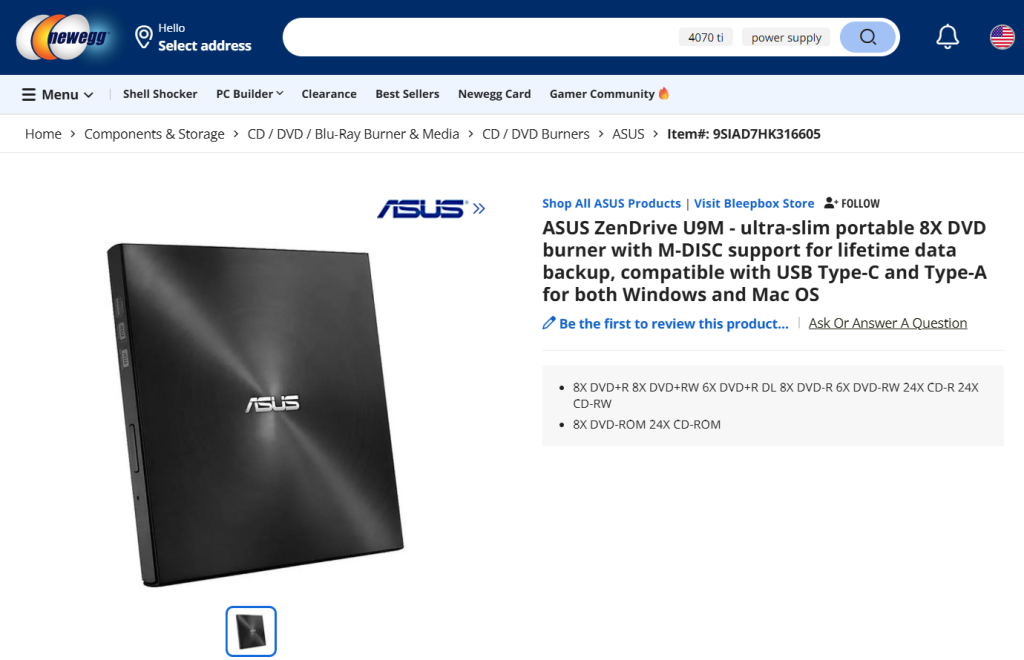
Many modern Macs no longer include a built-in CD or DVD drive, yet there are still plenty of situations where you might need one, accessing old files, installing software, or watching a DVD. The ASUS ZenDrive Black is a slim external optical drive designed to work with both Windows and macOS.
This guide explains how to use the ASUS ZenDrive Black on a Mac, from connecting it for the first time to playing and burning discs, in a clear and easy way.
Understanding Compatibility
The ASUS ZenDrive Black works with most versions of macOS and does not require any special drivers. Once connected, macOS should recognize it automatically as an external disc drive.
It is compatible with:
- MacBooks and iMacs (Intel and Apple Silicon)
- macOS 10.6 and later
Connecting the ASUS ZenDrive Black to Your Mac
- Start your Mac normally.
- Connect the ZenDrive to your Mac using the provided USB cable.
- Use USB-C if your Mac has USB-C ports.
- Use USB-A if your Mac supports it.
- Place the drive on a stable surface.
- Insert a CD or DVD into the drive.
After a few seconds, macOS should detect the disc.
Accessing a Disc on macOS
Once the disc is inserted:
- A disc icon should appear on the Desktop or in Finder
- Click the icon to open and view its contents
If you don’t see the disc:
- Open Finder
- Go to Finder Settings
- Make sure “CDs, DVDs, and iPods” is enabled
Playing CDs and DVDs
Audio CDs
- Audio CDs usually open automatically in the Music app
- You can play tracks or import them to your library
Movie DVDs
macOS no longer includes a built-in DVD player. To watch DVD movies:
- Install VLC Media Player (a free and widely used app)
- Open VLC and select Open Disc
- Choose DVD and start playback
Burning CDs and DVDs on a Mac
Burning a Data Disc Using Finder
For files such as documents, photos, or backups:
- Insert a blank CD or DVD
- When prompted, choose Open Finder
- Drag files into the disc window
- Click Burn and follow the on-screen instructions
Burning Video DVDs or ISO Files
For more advanced tasks, Finder may be limited. Third-party apps such as Burn or Roxio Toast provide additional options like video DVDs and disc copying.
Safely Ejecting the Disc
To eject a disc:
- Click the eject button next to the disc in Finder
- Or right-click the disc and choose Eject
Always eject the disc before unplugging the drive.
Troubleshooting Common Issues
Drive not recognized
- Try another USB port
- Avoid using unpowered USB hubs
- Restart your Mac with the drive connected
Disc not appearing
- Check Disk Utility to see if the drive is listed
- Try another disc to rule out damage
Playback issues
- Make sure VLC is installed
- Some DVDs may have region restrictions
Final Thoughts
The ASUS ZenDrive Black is a practical and reliable solution for Mac users who still need access to CDs and DVDs. With a simple plug-and-play setup and the right software, it fits easily into everyday macOS use.
Even though optical drives are no longer standard on Macs, using one doesn’t have to be complicated and the ZenDrive keeps it straightforward.
